

[Follow Bio Link] Unlock tails of obedience and joy with our Puppy Training board! Discover expert tips, tricks, and guidance to nurture a well-mannered pup. From basic commands to leash etiquette, embark on a journey towards a paw-sitively well-behaved furry companion. Tail-wagging success starts here! #PuppyTraining101 #PuppyLove #DogTrainingTips #FurryFriends #PuppyBehavior #PositiveReinforcement #PuppyObedience #PawsitiveTraining #CanineCompanions #PuppyCare #TrainingGoals

Tutorials – Scandiwork


Find out 3 tips for creating softer looks and adding details when using stencil coloring with your stamped images. Get more card ideas and crafting inspiration here.

ELinuxBook is a Linux Community Site who Provides Quality Linux Tutorials. Here we Discuss and writes articles for all kinds of Linux Distros.

Create a captivating look and turn heads. Explore StyleCraze for expert tips and tutorials to achieve stunning eye makeup looks that enhance your features.

These super easy how to draw tutorials are here to show you that anyone can be an artist. You'll love these simple drawing guides.

Get a Cricut designer's best tips, tricks, and tutorials for hidden secrets and easier projects! These Cricut Design Space tutorials cover everything from how to hide the grid to how to share your canvas!

Challenge and inspiration for card makers, stamping, and die cutting.

Linktree. Make your link do more.

IT Smart Tricks is a Technology Community Site who Provides Quality Technical Tutorials. Here we Discuss and writes articles for all kinds of Microsoft Windows,Linux,Mac Os Etc.

If you don't have Freenotes you can download it HERE from the iTunes store. How To Import Your Digital Planners & PDF Files (Download your digital files to your iPad and save them to your files.) 1. Open Freenotes app. Click on the + icon. Choose Import. 2. Locate your digital planner that you download to your iPad from your files. Choose create a new note. 3. Tap on import. 4. Now your digital planner is ready to be used. How to use digital planner hyperlinks. 1. In the tools bar click on the open book icon. This will close out the toolbar and allow you to use the hyperlinks within your digital planner. How to import digital PNG stickers. 1. Click the + icon on the top bar. From the drop-down menu tap on stickers. 2. Once the stickers menu pops up scroll to the end and select the circle with the + icon. 3. Name your sticker set. Now choose if you want to add stickers that are in your photo album or in your files folder. I have mine in my photo album so I'm going to select them from there. You can only add 20 digital stickers at a time. 4. Choose Create. Now you will be able to use your digital stickers anytime within the app. How to make a digital sticker book. You can also do this in Goodnotes. A sticker book is a digital book that you can open up while using your planner in Freenotes. You can use the selection/lasso tool to select, copy then paste into your planner. You can have your sticker book and planner opened up at the same time. 1. From the Freenote home page click the + icon. 2. From the drop-down menu choose new notebook. 3. Choose your title and notebook cover. 4. Choose the photo album icon in the tools bar. Select your digital stickers from your photo album. 5. Now you can resize, organize, and more your digital stickers on your template. How to export your sticker book. 1. From the home screen choose the + icon. 2. Choose the select icon and select your sticker book. 3. With your sticker book selected tap the + icon again and this time tap the share button icon from the menu. 4. Choose the Freenotes option, save your file to your file folder then press done. How to change your pen tools thickness & more. 1. Just double-tap on the tool from the toolbar to open up the settings menu for each tool. A look at each writing tool. How to delete tools from the toolbar. 1. Just tap and hold the tool that you want to delete, then choose delete. How to add deleted tools back to the toolbar. 1. Tap and hold the icon shown in the screenshot below. This will bring up a pop-up menu. Here you can select the tools you want to add to your toolbar. How to move the tools toolbar. 1. Just tap on the pen tool icon and drag it where you want it. Tape Tool How to clear a planner page. 1. Choose the layer icon, click on the 3 dots on the layer you want clear, and choose Clear this page. Use the text tool if you don't like your handwriting. 1. Choose the text tool, at the bottom of the page you will see the text tools where you can choose your font, font size, and more. Selection/ Lasso Tool. 1. Use the lasso tool to select, move, delete, and more your photos, text, and stickers. 1. To move an image, sticker or text just select the lasso tool, make a circle around your object, and move it to where you want it on the page. To deselect an object just tap anywhere outside of your selections. 2. Bring up more options for the objects you have selected with the lasso tool. Just tap within the selection and more options will pop up so you can do more with your objects. How to match your text color to your planner theme. 1. Use the lasso/selection tool from the toolbar. Make a selection around your font. Tap on the selection. Choose color from the pop-up menu. 2. When the color box pops up you can scroll through them to see all the color options. You will even see where you can add your own colors to the color box. Tap the color wheel with the + icon on it. 3. Tap the color picker icon. This will bring up the color picker selections tool. You can drag it anywhere over the page of the color you want to add to the color box. To select the color just remove your finger. 4. Now in the color box you will see the color that you selected. To add it to your color box you will need to tap + icon. Once it's added a checkmark will appear. 5. Select the colored icon shown in the screenshot below to go back to your color box. Now select your new color to change the font color. Top Bar Tools 1. This tool will bring up all the pages within your planner. You can fav. pages, rearrange pages, delete pages, see your bookmarked pages, outlines and more. 2. This tool allows you to add more pages to your planner, import pages, images and doc scans. 3. This tool allows you to add layers to your planner page to keep things organized on your planner page. 4. This tool allows you to search within your planners. 5. This tool lets you record your voice memos in your planner. 5. The + icon will bring up other tools and settings. Make folders and move planners. 1. From the Freenotes main page tab on the icon shown in the screenshot. 2. Tap the + with a folder icon. Name your folder, and click done once you named your folder. 3. To move your planners to new folders, tap and hold your finger down over the planner you want to move. A pop-up menu will pop up. Tap on move. Select the folder from your options that you want to move your planner to then tap move at the top. How to get Freenotes for life. 1. On the main menu select the settings gear at the bottom of the page. At the top, you can add your email address. Now you have it 100% free for life. How to get free fonts, stickers, and templates in Freenotes. 1. On the main menu page select the side bar tool to open the folders tab. 2. Select Material Center. From here you can see free fonts, free stickers, and free templates that you can install into your Freenotes app to use. Copy & Paste Pages 1. Go to the page you want to copy. Tap on the + icon. 2. Tap on Canvas then tap on copy page. 3.Go the page that you want to paste the copied page behind. Choose the add page icon. Then tap paste page. That’s it. Turn on Dark Mode 1. On the main page tap the settings icon that looks like a gear and toggle dark mode on. Yay! You made it to the end. Thank you for sticking around till the end. If you are interested in any of the digital planners I used in my screenshots you can find them and many more on our Etsy Shop HERE. Be sure to fav. and follow our shop as we do sales often. See a few of our planners below. TAKE A LOOK HERE TAKE A LOOK HERE TAKE A LOOK HERE TAKE A LOOK HERE TAKE A LOOK HERE

Shop recommended products from 🥂 Bougie Babe Favs 🥂 on www.amazon.com. Learn more about 🥂 Bougie Babe Favs 🥂's favorite products.

CANVA TEMPLATES: How To Make Canva Templates (Canva Tips And Tricks). Wondering how to make Canva templates? In this Canva tutorial for beginners, you'll lea...

Looking for Canva tips and tricks? Check out our comprehensive Canva guide, full of useful tips and tricks for better graphic designs.

Next up in the Tips + Tricks series is the easy roll hem. I usually get at least one request for a tutorial every time I post a photo of a rolled hem so I thought I should get on this one. I learned this technique from one of our seamstresses at work, Jurata, when she couldn’t believe that I didn’t learn how to do th

Oh, the things that you can do with Photoshop! Imagine having the power to change how a picture looks, remove all the unwanted imperfections, add some details, and a whole lot more with just a few points and clicks. This…

WEBON was Created to Make Your Online Working Easier , and Give you Tutorials in a Simple Way

Secret Knowledge? Hidden steps to coloring? Are there quiet things that bloggers and instructors do with their Copic Markers and colored pencils which they never show or discuss? You bet'cha! Today, I'm going to spill the beans and tell the tales. Because your coloring projects will run smoother and turn out better once you know the secrets!

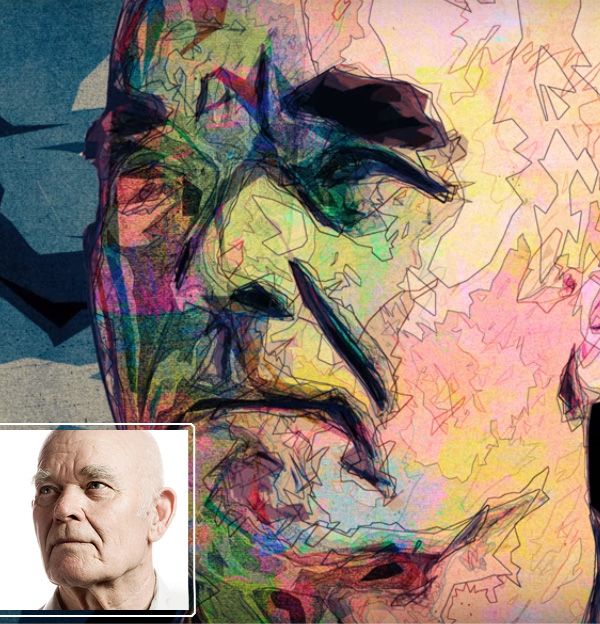
New Adobe Photoshop tutorials that will improve your photo manipulation, workflow and make a things to design easier and better. New essential tips and

Change Eye Color in Photoshop - Photoshop Tutorials - Photoshop Tips and Tricks #Photoshoptutorial #Photoshoptips #Photoshoptricks

Credit: vinnuf

Free svg files for cricut and silhouette cutting machines, free printables and clipart pngs for sublimation and all diy craft projects.

Hi all! Today, I thought I would show you my swatch book. I created this for browsing my stash, but I also keep it in my purse for shoppin...
